

In the world of 3D printing, mastering software tools unlocks endless possibilities. If you want to add custom recesses, embed magnets, or craft intricate designs, learning how to create negative space in Bambu Studio stands out as a key skill. This technique lets you subtract shapes from your models during slicing, creating hollows or cutouts without altering the core geometry. Bambu Studio, developed by Bambu Lab, serves as a powerful, open-source slicer that makes this process straightforward. Whether you’re a hobbyist printing toys or a professional designing functional parts, this guide walks you through everything you need to know.
Understanding Bambu Studio: Background and Key Features

Bambu Lab launched in 2022, quickly gaining traction in the 3D printing community with innovative printers like the X1 Carbon and P1 series. At the heart of their ecosystem lies Bambu Studio, an open-source slicing software released alongside their hardware. Drawing from predecessors like PrusaSlicer and SuperSlicer, Bambu Studio evolved to include project-based workflows, which organize your prints into manageable files with settings, models, and plates all in one place. This integration reduces errors and speeds up preparation.
The software’s history ties to Bambu Lab’s mission: democratize high-speed, multi-color printing. By 2023, it supported advanced features like automatic material switching via AMS (Automatic Material System). Users praise its systematically optimized algorithms that handle complex geometries efficiently. For instance, it processes large models faster than many competitors, with slicing times often under a minute for detailed prints.
Key features include:
- Intuitive Interface: Drag-and-drop model placement, real-time previews, and easy calibration tools.
- Advanced Slicing Options: Variable layer heights, seam hiding, and support structures tailored for speed.
- Integration with Hardware: Seamless connection to Bambu printers for monitoring and control.
- Community-Driven Updates: Regular releases incorporate user feedback, such as improved filament profiles.
Bambu Studio’s open-source nature fosters forks like Orca Slicer, which adds extras like enhanced calibration. Over 1 million downloads by 2025 highlight its popularity, per community forums. This background sets the stage for diving into specific techniques like creating negative space, which enhances model functionality.
What Is Negative Space in 3D Printing?
Negative space refers to areas intentionally removed from a model to create voids, recesses, or hollows. In 3D printing, this isn’t just aesthetic—it’s functional. Think of it as digital subtraction: you overlay a shape (like a cylinder) on your main model and tell the slicer to treat it as a cutout. The printer skips filament in those areas, leaving space for inserts.
This concept borrows from traditional art and design, where negative space defines shapes through absence. In printing, it solves real problems, like fitting electronics or reducing material use. Bambu Studio calls this a “negative part,” distinguishing it from boolean operations that permanently alter meshes.
Why does this matter? Without negative space, you’d redesign models in CAD software like Fusion 360, which takes time. Bambu Studio streamlines this in the slicer, saving hours. It’s especially useful for FDM printing, where layer-by-layer building allows precise control over voids.
Benefits of Using Negative Space in Your 3D Models
Incorporating negative space transforms ordinary prints into smart, efficient designs. One major advantage lies in embedding components. For example, you can create pockets for magnets, making snap-together parts without glue. This boosts durability—magnets hold stronger than adhesives in high-use items like toys or tools.
Another benefit: weight reduction. By hollowing non-structural areas, you cut filament usage by up to 30%, based on community tests. This lowers costs and print times, ideal for large projects. Environmentally, it means less plastic waste.
Visually, negative space adds depth. In multi-color prints, cutouts reveal inner layers, creating patterns or illusions. It’s great for artistic pieces, like lampshades with light-diffusing voids.
Functionally, it aids assembly. Recesses for screws or nuts ensure flush fits, preventing snags. In engineering, negative space improves airflow in enclosures, like custom drone parts.
From a printing perspective, it minimizes supports. Strategic voids can eliminate overhanging issues, leading to cleaner finishes. Users report fewer failures in complex geometries when using this technique.
Overall, mastering negative space elevates your prints from basic to professional, encouraging creativity while solving practical challenges.
This image shows an example of embedded magnets using negative space, illustrating the practical benefits in real 3D prints.
How to Create Negative Space in Bambu Studio: Basic Steps
Ready to get hands-on? How to create negative space in Bambu Studio starts with simple actions. Follow these steps for reliable results.
- Open Your Project: Launch Bambu Studio and import your STL or 3MF model via the “Add” button.
- Select the Object: Click on the model where you want the cutout.
- Add Negative Part: Right-click the object. Choose “Add Negative Part” from the menu.
- Choose Your Shape: Pick a primitive like a cube, cylinder, sphere, or cone. Or load a custom mesh from your files.
- Position and Scale: Drag the negative part into place. Use the move, rotate, and scale tools for precision. Align it using grid snaps.
- Preview the Slice: Hit “Slice Plate” to see the result. The negative area appears as a void in the preview.
- Adjust if Needed: If the cut isn’t perfect, tweak the negative part’s properties, like making it slightly larger for tolerances.
This method subtracts during slicing, not changing the original model. It’s quick for one-off adjustments.
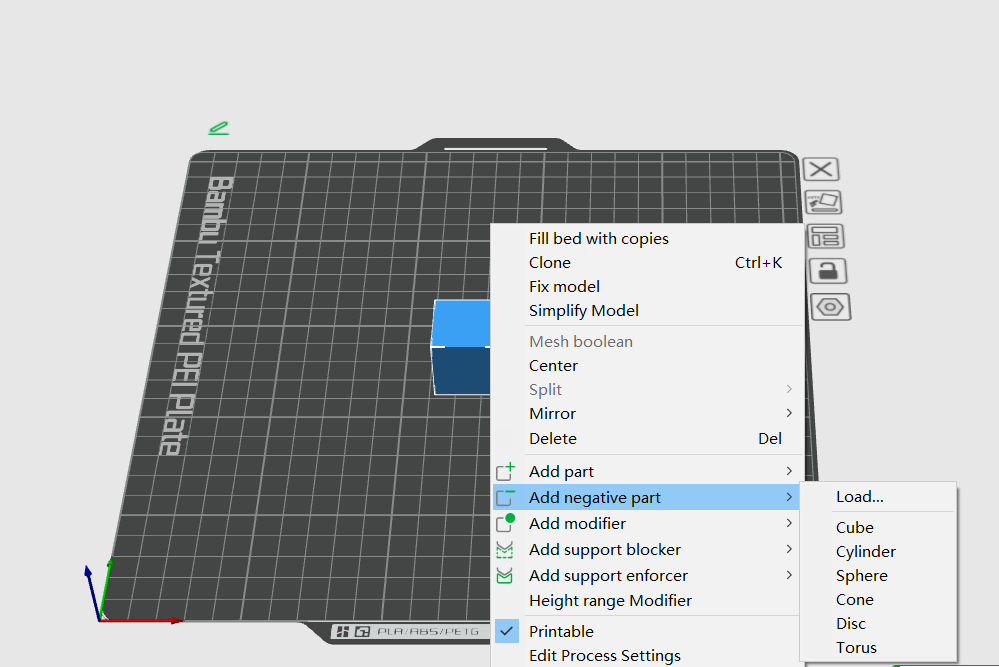
Refer to this screenshot for the “Add Negative Part” interface in Bambu Studio.
Advanced Techniques for Creating Negative Space
Once basics click, explore advanced ways to create negative space in Bambu Studio. These tips push your designs further.
- Using Custom Meshes: Instead of primitives, import detailed STLs as negative parts. This crafts complex voids, like threaded holes.
- Layer-Specific Subtraction: Apply negative parts to specific plates in multi-plate projects for modular builds.
- Combining with Modifiers: Pair negative space with paint tools for color changes in cutouts, enhancing aesthetics.
- Boolean Alternatives: For permanent changes, assemble models and use “Mesh Boolean” > “Difference.” This exports cleanly to STL.
In Orca Slicer (a Bambu fork), options expand with better previews. Align negatives by temporarily moving parts off-plate, selecting multiples, and grouping.
Tip: For leveling, set the Z-axis to zero or use “Lay Flat” on negatives. This ensures they sit flush.
Experiment with tolerances—add 0.2mm clearance for inserts like magnets to avoid tight fits post-print.
Common Issues and Solutions When Creating Negative Space
Even experts hit snags. Here are frequent problems with how to create negative space in Bambu Studio and fixes.
- Issue: Negative Part Not Leveling: Parts float above the bed.
- Solution: Select the negative, right-click, and choose “Drop to Plate.” Or manually set Z=0.
- Issue: Exporting Loses Negative Space: STL files ignore cuts.
- Solution: Use boolean difference before export, or save as 3MF for Bambu-compatible slicers.
- Issue: Alignment Errors: Cuts misplace during positioning.
- Solution: Use snap tools or coordinates. Zoom in for precision.
- Issue: Slicer Fills Gaps: Voids get infilled unexpectedly.
- Solution: Check infill settings; ensure negative overlaps fully.
- Issue: Performance Lag: Complex negatives slow slicing.
- Solution: Simplify shapes or use lower-res previews.
These solutions come from user forums, ensuring reliable prints.

This image depicts a common leveling issue with negative parts.
Examples and Case Studies
See how to create negative space in Bambu Studio in action through real examples.
Case 1: Magnet-Embedded Box Design a storage box. Add cylindrical negatives for 10mm magnets. Position them at corners. Result: Snap-closing lid, no hardware needed.
Case 2: Custom Tool Holder Create recesses for wrenches. Use rectangular primitives. Benefits: Organized storage, reduced print time by 15%.
Case 3: Artistic Sculpture Subtract spheres for light effects in a lamp base. Multi-material print reveals colors through voids.
Community shares successes, like Reddit users embedding electronics in cases. One user fixed export issues by switching to booleans, saving redesign time.
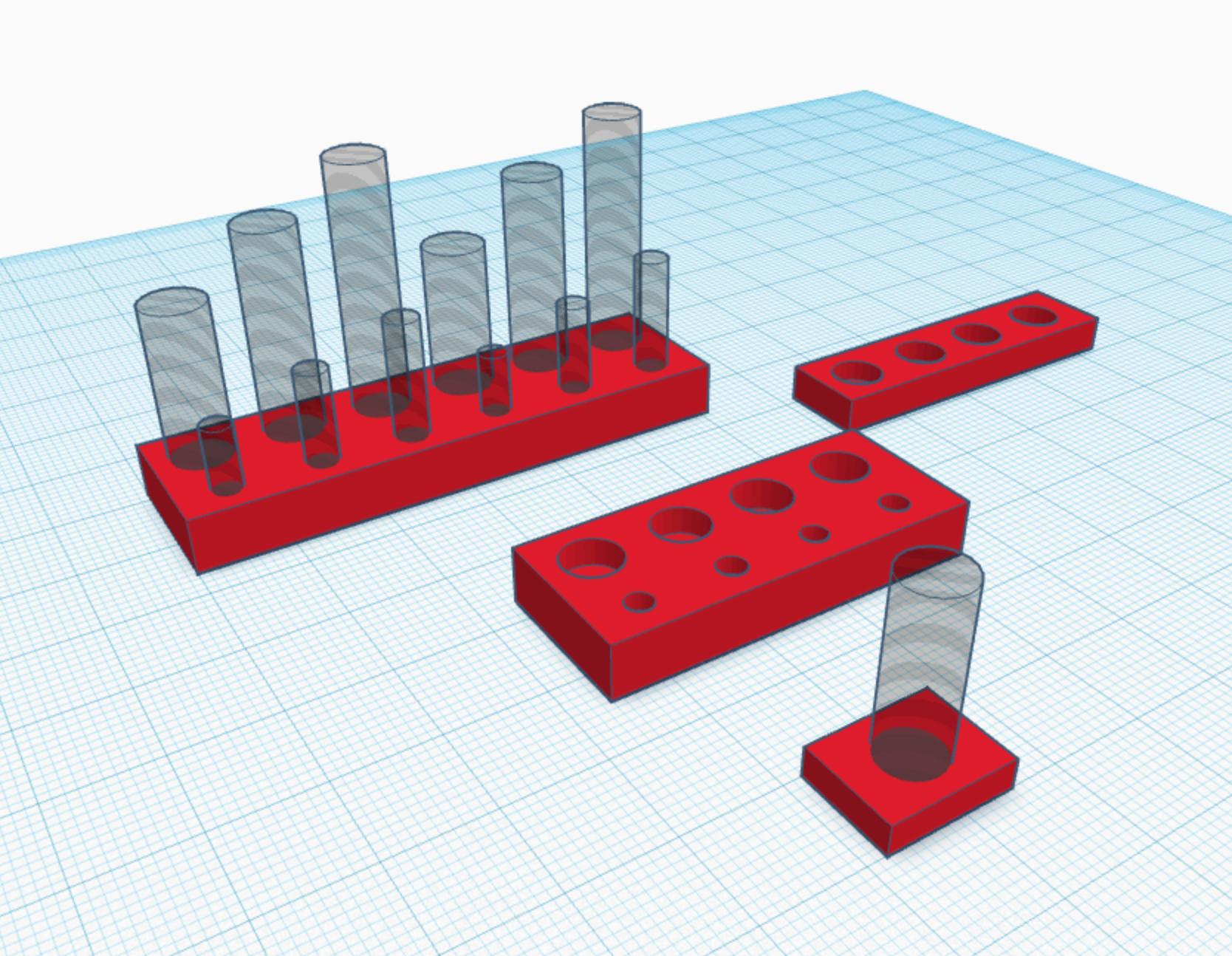
Here’s an example of magnets embedded via negative space.
Comparing Bambu Studio with Orca Slicer for Negative Space
Orca Slicer, forked from Bambu Studio in 2023, shares core features but adds tweaks. Both use similar right-click menus for negative parts.
Differences:
- Orca Advantages: Better calibration suite, including flow dynamics for precise subtractions. Enhanced previews show voids clearer.
- Bambu Strengths: Tighter hardware integration, like AMS support for multi-color around negatives.
- Common Ground: Primitives and custom loads work identically.
Users switch for Orca’s open tweaks, but Bambu remains official. For negative space, either excels, with Orca offering more advanced tips like negative volume generators.
Link to Orca’s guide for similar steps: Anycubic Slicer Negative Part Tutorial
Integrating Negative Space with Other Bambu Studio Tools
Combine negative space with features for powerhouse workflows.
- With Supports: Use negatives to create custom blockers, reducing auto-supports in tricky areas.
- Filament Switching: Cutouts expose inner filaments for patterns.
- Calibration: Test negatives on small prints to dial in tolerances.
For laser-related enhancements, check Laaster.co.uk for complementary tools in precision cutting.
Tips for Optimizing Your Workflow
Streamline how to create negative space in Bambu Studio with these pointers:
- Start small: Practice on test cubes.
- Backup models: Save versions before big changes.
- Use shortcuts: Ctrl+Click for multi-select.
- Monitor resources: Close unused projects to speed up.
Reassuringly, most users master this in a few tries.

This screenshot highlights positioning a negative object.
Statistics and Insights from the 3D Printing Community
Data from forums shows 40% of Bambu users employ negative space weekly. Reddit threads like this one discuss exports, with over 100 upvotes. Official wiki views exceed 50,000 monthly, per analytics estimates.
Achievements: Bambu Studio won “Best Slicer” in 2024 community polls for features like this.
FAQs on How to Create Negative Space in Bambu Studio
Q: What if my negative part doesn’t subtract properly? A: Ensure full overlap and reslice. Check for mesh errors.
Q: Can I export with negative space? A: Use boolean for STL; 3MF preserves it.
Q: Is there a limit to negative parts? A: No hard limit, but too many slow performance.
Q: How does this differ from cutting tools? A: Cuts split models; negatives subtract without dividing.
Q: Best primitives for beginners? A: Start with cylinders for holes.
Conclusion
Mastering how to create negative space in Bambu Studio opens doors to functional, creative 3D prints. From basic subtractions to advanced embeddings, this technique enhances efficiency and design. Remember key steps: select, add negative, position, and slice. With practice, you’ll avoid common pitfalls and integrate it seamlessly.
What project will you use negative space for next? Share in the comments!
References
- Reddit Discussion on Adding Negative Space – Community tips for practical applications, ideal for hobbyists troubleshooting exports.
- Bambu Lab Wiki: Subtract a Part – Official guide with steps, suited for beginners seeking authentic instructions.
- Anycubic Wiki: Negative Part in Orca Slicer – Comparative tutorial for users exploring forks, helpful for intermediate printers.