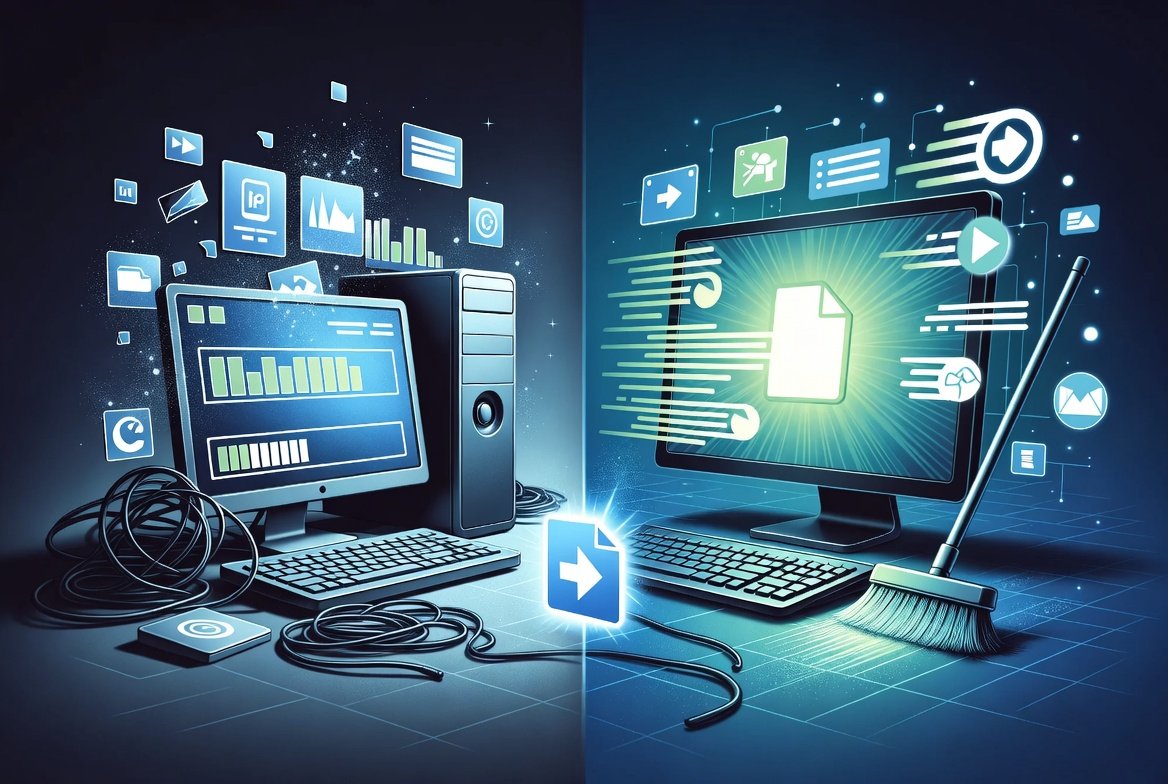
A slow computer can be frustrating, especially when it interrupts productivity, gaming, or even simple daily tasks. Over time, every PC tends to lose its speed and responsiveness due to cluttered files, outdated drivers, and inefficient system processes. Fortunately, improving your computer’s performance doesn’t always require expensive hardware upgrades. With the right approach—focusing on system cleaning and Advanced SystemCare and Driver Booster you can significantly boost your PC’s efficiency and extend its lifespan.
Why PCs Slow Down Over Time
Before diving into solutions, it’s important to understand why computers slow down. As you use your PC, temporary files, cache data, unused applications, and system logs begin to accumulate. These unnecessary files consume valuable storage space and can interfere with system performance. Additionally, outdated or corrupted drivers may cause hardware components like graphics cards, printers, and network adapters to function poorly or inefficiently.
Another common issue is startup overload. Many programs automatically launch when your computer boots, increasing startup time and consuming memory in the background. Combined, these factors gradually reduce your system’s speed and responsiveness.
The Role of PC Cleaners
PC cleaner tools are designed to remove unnecessary files, optimize system settings, and free up disk space. They scan your system for junk files such as temporary internet files, leftover installation data, and cache files that no longer serve a purpose.
By cleaning these files regularly, you can:
- Free up storage space
- Improve system speed
- Reduce system crashes
- Enhance overall responsiveness
A good cleaner tool can also help manage startup programs, allowing you to disable unnecessary applications that slow down boot time. Some advanced cleaners even repair registry errors, which can further stabilize your system.
However, it’s important to use trusted and reputable cleaner tools. Over-aggressive cleaning can sometimes remove essential files, so always review scan results before deleting anything.
Importance of Driver Updates
Drivers are essential pieces of software that allow your operating system to communicate with hardware components. Whether it’s your graphics card, sound system, or printer, each device relies on drivers to function correctly.
Outdated drivers can lead to:
- Reduced performance
- Hardware malfunctions
- Compatibility issues
- System crashes or errors
For example, an outdated graphics driver can significantly affect gaming performance or video rendering. Similarly, an old network driver may cause slow internet connectivity.
Updating drivers ensures that your hardware runs efficiently and takes advantage of the latest improvements and bug fixes provided by manufacturers. Many updates also include security patches, making your system safer from vulnerabilities.
Manual vs Automatic Updates
You can update drivers manually by visiting the manufacturer’s website and downloading the latest versions. While this method gives you full control, it can be time-consuming and requires technical knowledge to ensure compatibility.
Automatic driver updater tools, on the other hand, scan your system, identify outdated drivers, and install the correct versions for you. These tools are convenient and reduce the risk of installing incorrect drivers. However, just like cleaner tools, it’s essential to choose reliable software to avoid potential issues.
Combining Cleaning and Driver Updates
For the best results, cleaning your PC and updating drivers should go hand in hand. Cleaning removes unnecessary clutter, while updating drivers ensures your hardware operates at peak performance.
Here’s a simple guide you can follow:
- Run a PC cleaner to remove junk files and optimize storage
- Review and disable unnecessary startup programs
- Update all essential drivers, especially graphics, network, and chipset drivers
- Restart your system to apply changes
Performing this routine regularly—once every few weeks—can maintain your system’s speed and stability.
Additional Tips for Better Performance
While cleaners and driver updates are powerful tools, combining them with good usage habits can further improve your PC’s performance:
- Uninstall unused programs: Remove software you no longer need
- Keep your OS updated: System updates often include performance improvements
- Use antivirus protection: Malware can significantly slow down your system
- Upgrade hardware if needed: Adding more RAM or switching to an SSD can provide a major speed boost
Common Mistakes to Avoid
When optimizing your PC, avoid these common pitfalls:
- Using multiple cleaner tools at once: This can cause conflicts
- Downloading software from untrusted sources: It may contain malware
- Ignoring driver compatibility: Installing the wrong driver can cause system issues
- Over-cleaning the registry: This can lead to system instability
Always back up important data before making major changes to your system.
Final Thoughts
Improving PC performance doesn’t have to be complicated or expensive. By regularly cleaning your system and keeping drivers up to date, you can restore speed, improve stability, and enhance your overall computing experience.
Think of it as routine maintenance—just like servicing a car. A well-maintained PC not only performs better but also lasts longer. With consistent care and the right tools, you can keep your computer running like new for years to come.